




How to Save Your Computer with the Built-in CPU Cooling Fan in Laptops
Many people only realize how crucial that small fan is when their computer suddenly slows down, crashes, or even shuts down automatically. However, I need to "cool you down" first: the fan itself cannot "save" the computer—it's merely a "transporter" of heat. What truly saves the computer is your action of maintaining the fan to keep the cooling system running efficiently.
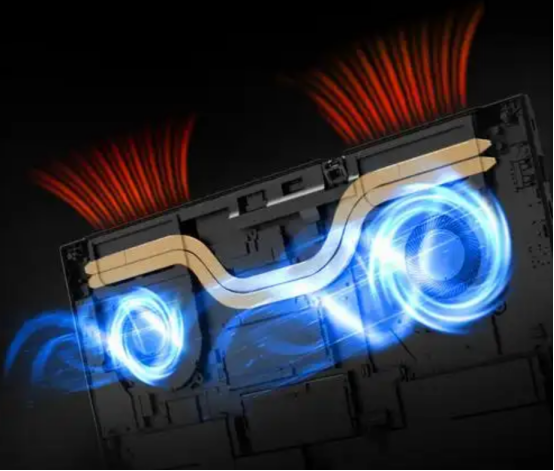
Regarding the built-in CPU cooling fan in the laptop, your "rescue"
most fundamental. Let me help you break it down:
Level 1: Emergency rescue (computer overheating, frequency reduction, lagging)
Don't panic at this moment, first do "physical cooling":
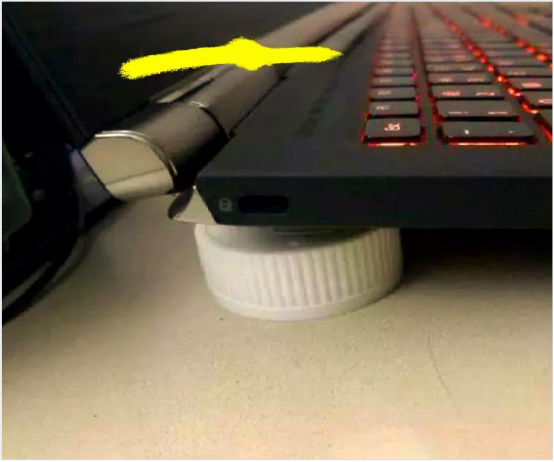
1. Raise the body: Find two bottle caps or a book, place them on both ends of the laptop shaft, and let the bottom hang in the air. This can instantly increase the air intake, with immediate results, and can reduce 5-10 ℃.
2. Close the background "power consumer": Open the task manager and check if there are any abnormal CPU usage rates. If a program (such as browser garbled tabs or background updates) takes up too much space, simply end the task and the fan speed will immediately decrease.
3. Force restart: If the system is already stuck, press and hold the power button to force shutdown, wait for 1 minute before restarting. This can clear redundant instructions from memory and calm down the CPU.
Level 2: Root Cause Clear Source (the fan rotates quickly but blows out hot air, or even no wind)
This is the most common 'false fault' - dust blocking the air outlet. The fan is running desperately, but the wind cannot escape, and all the heat is trapped inside.
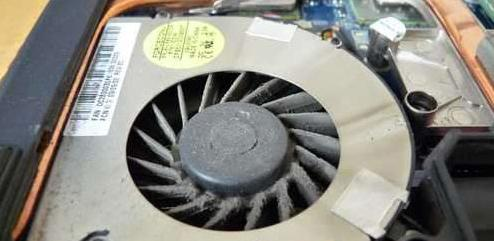
Operation: You need a small screwdriver and a soft bristled brush. Open the back cover (remember to unplug the battery cable first) and find the heat dissipation module (where the copper pipe is connected to the fan).
Key cleaning: Dust accumulation on fan blades and cotton fluff blocking between air outlet fins (heat sinks). Gently sweep it off with a brush, and if there is a compressed air tank, blow it in the opposite direction from the air outlet for better results.
Before cleaning

After cleaning
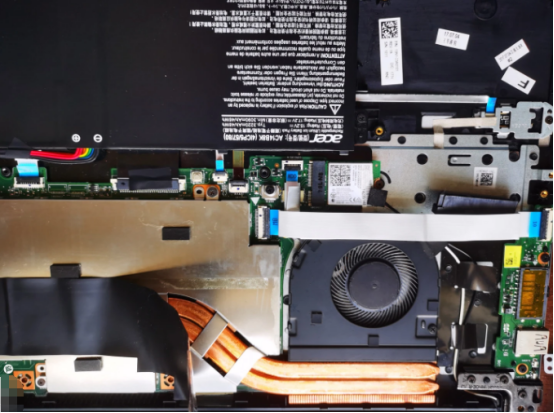
Key reminder: Do not blow with your mouth or use a vacuum cleaner to suck while the fan is rotating at high speed, as this will generate electric current backflow and burn out the motherboard. Be sure to disconnect the fan power cord first, or hold down the fan blades before cleaning.
Level 3: Core Rescue (Fan not turning, abnormal noise, or abnormal speed)
If the fan is still not awesome after dust cleaning, the problem lies in the hardware itself:
If the fan does not rotate at all or makes a "clicking" noise, it is due to a lack of oil or wear on the bearings. Don't try to refuel yourself (lubricating oil can corrode plastic parts and easily get dusty). The safest way is to search for "your laptop model+cooling fan" on the website,For example, HP 15-DB 15Q-DX (model)+L20474-001 (part number), and buy an original or compatible module, usually priced at a few tens of yuan. After replacement, your computer's cooling performance can be restored to 90% of its factory state.
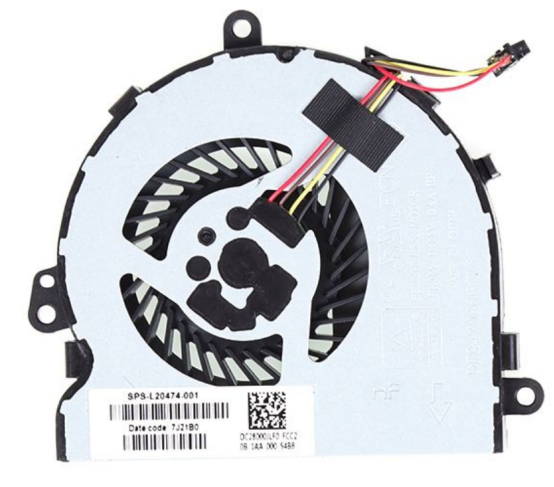
If the fan is running but the CPU is still hot: the problem is that the silicone grease is dry. This is due to the failure of the thermal conductive medium between the CPU chip and the heat dissipation copper tube. If you have strong manual dexterity, removing the heat dissipation module, wiping off the old silicone grease, and applying a new one can directly "revive" the performance of an old computer.
Finally, I have a stop loss suggestion for you:
Never lower the fan speed in BIOS or use software to force it to shut down just to 'mute'. High temperature is the biggest "chronic killer" of laptop CPUs and motherboards. Running at temperatures above 85 ℃ for a long time can accelerate chip solder ball virtual soldering, which is the true "cure all".
If you are preparing to dismantle the laptop now, be sure to first confirm whether your laptop is within the warranty period - if it is under warranty, removing the "fragile sticker" at the bottom will void the warranty, and this "rescue" will not be worth it. The best way to 'save' at that time was to directly contact the official after-sales service.
If you are unsure how to remove the back cover or want to check if your CPU temperature is in the "danger zone", you can tell me your laptop model and current usage scenario (such as playing games or working), and I will help you determine what to do next.